Note: This is an overview of iRay's modes. Please refer to
GUI for a detailed
description of iRay's graphical user interface, and to
Keybindings for the
complete list of available keybindings.
Switching Between Modes
At startup, iRay is in Slice Mode. To switch to volume
rendering mode, activate the drawer ("View" -> "Toggle Drawer")
and click the radiobuttonn labeled Volume. As a shortcut,
you can also simply press the "v" key.
Similarly, to switch from Volume Mode to Slice Mode,
activate the Slicer radiobutton in the GUI, or press
"s".
Note that you might experience a short delay when switching to
volume mode for the first time due to the 3D texture
upload.
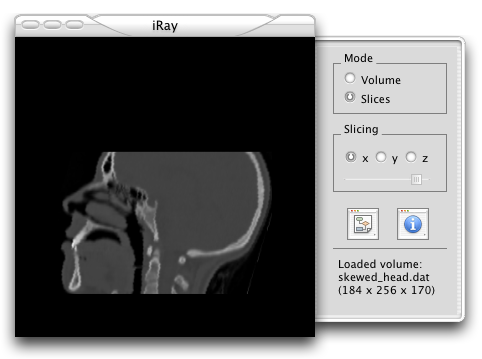
iRay displaying a sample data set. The drawer to the right
can be opened by pressing Command-D.
Slice Mode
At startup, iRay is in Slice Mode, which means that slices
along the three main axes are displayed. The default slicing
direction is to slice along the x axis.
You can switch between displaying slides along the x, y and z axis
by pressing the "x", "y" and "z" key, respectively. You can also
set the slicing direction by choosing one of the radiobuttons in
the drawer. The current
slice can either be set through a slider in the GUI, or with the
cursor keys: Cursor-Up increases the current slice number,
and Cursor-Down decreases it.
See also: Volume Mode.