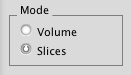
Mode iRay supports two display modes, which you
can select via the mode selector. The Volume mode
renders the whole volume, using 3D textures for display.
This mode gives the best overall impression of
the 3D volume. In Slices mode, only one slice of
the volume along the x, y or z axis is displayed at the
time. This mode is especially suited to get a quick
overview of large volume files.
|
|
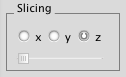
Slicing When in slicing mode, a group of radio
buttons allows you to choose along which axis to slice. The
slider below the buttons lets you interactively choose the
slice that is displayed.
|
|
Transfer Function Editor and Extended Information
The two buttons in the lower part of the drawer bring up
additional panels. The left button shows the transfer
function editor. The right button displays extended information
about the currently loaded volume file and your settings.
|

|
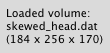
Brief Information
Information about what volume file is currently loaded and its
dimension is displayed at the bottom of the drawer. If an
error occured when trying to load the volume, this is also
going to be indicated here.
|
|